
What Is Aspect Ratio? (And How to Use It Correctly)
A clear, no-nonsense guide to what aspect ratio means, how it's calculated, the most common ratios in photography, video, and presentations, and how to convert between them without distorting your work.
- design-basics
- aspect-ratio
- guides
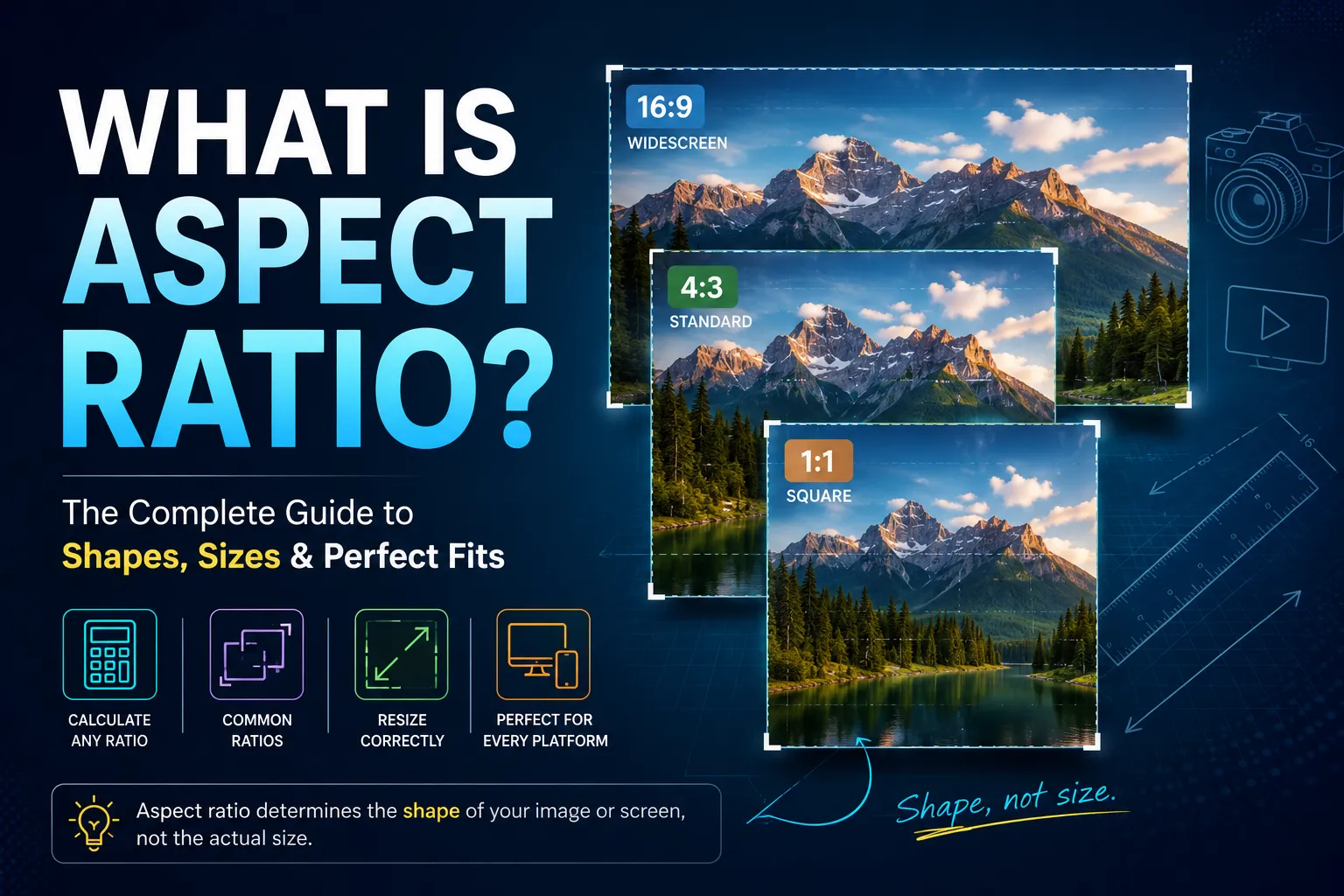
Aspect ratio is the relationship between the width and height of an image, video, or screen. It’s written as two numbers separated by a colon — like 16:9 or 4:3 — and it determines the shape of whatever you’re looking at, regardless of its actual size. Put simply: what is aspect ratio? It’s a shape, not a size — and that’s true whether you’re talking about a single photo’s image aspect ratio or an entire video.
That last part trips people up. A phone screen and a movie theater screen can share the same aspect ratio even though one is a few inches wide and the other is thirty feet across. Aspect ratio isn’t about size. It’s about shape.
Once you understand that distinction, the rest follows in order: the formula, the common presets, why PowerPoint slides can look stretched, and why a photo sometimes gets cropped oddly when you post it. We build the Aspect Ratio Calculator and Aspect Ratio Finder tools linked throughout this guide, and most of what follows comes from the same handful of questions people run into using them.
What Does Aspect Ratio Mean, Exactly?
Aspect ratio tells you how many units wide something is for every unit of height. A 16:9 video is 16 units wide for every 9 units tall. A 1:1 image is perfectly square — equal width and height.
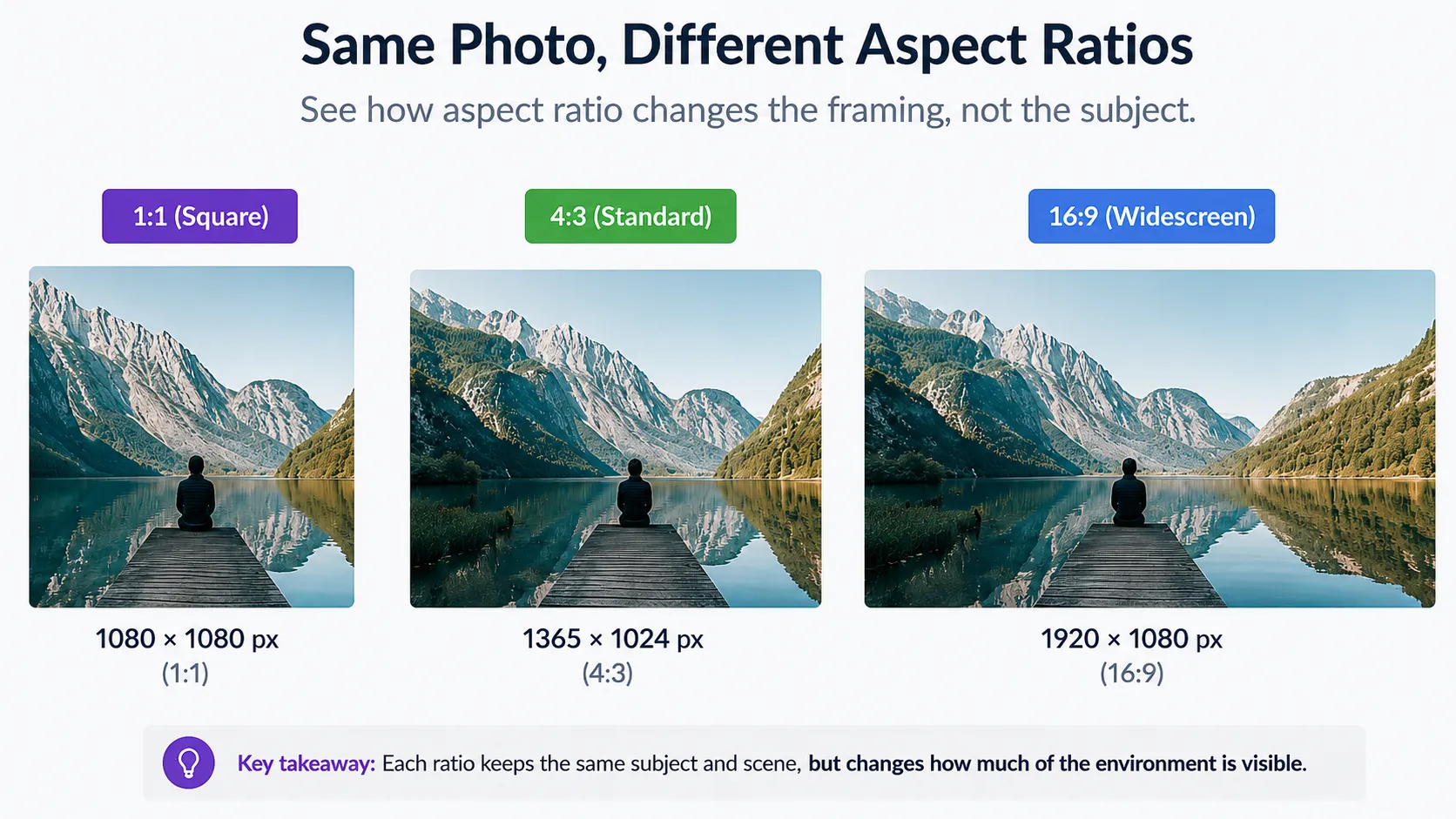
The two numbers are always shown in their simplest form. A 1920×1080 pixel video and a 1280×720 pixel video look identical in shape because both simplify down to 16:9. Change either number and the shape changes too, even if the file size stays the same.
Worth separating here: 1920×1080 is a resolution, not an aspect ratio, and the two get confused constantly. Resolution is the exact pixel count — 1920 pixels wide by 1080 pixels tall. Aspect ratio is the simplified shape that count reduces to — 16:9. A 1920×1080 video and a 3840×2160 (4K) video are both 16:9; one just has four times the pixel detail of the other. Same shape, different resolution.
This matters most when you’re resizing something. Shrinking a 16:9 video down to fit a 4:3 frame doesn’t just make it smaller — it forces the image to stretch, squeeze, or get cropped to fit the new shape. Aspect ratio is the reason “just resize it” sometimes ruins how something looks.
How Aspect Ratio Is Calculated
The aspect ratio formula is simple: width ÷ height, then simplified to the smallest whole numbers that keep the same proportion.
Here’s a worked example. Say you have an image that’s 1920 pixels wide and 1080 pixels tall.
- Find the greatest common divisor (GCD) of both numbers. For 1920 and 1080, that’s 120.
- Divide both dimensions by the GCD: 1920 ÷ 120 = 16, and 1080 ÷ 120 = 9.
- The result is 16:9.
That’s how you calculate aspect ratio from width and height for any image or video — the steps never change, only the numbers.
You don’t need to do this math by hand every time — that’s exactly what an aspect ratio calculator is for. Type in your width and height, and it simplifies the ratio instantly. It also works in reverse: give it a known ratio and one dimension, and it’ll calculate the matching width or height for you, which is genuinely more useful day-to-day than the simplification itself.
Two numbers worth knowing: aspect ratio dimensions can be expressed as a ratio (16:9) or as a decimal (16 ÷ 9 = 1.78). Both describe the same shape — design software tends to use the ratio format, while some technical specs use the decimal.
Common Aspect Ratios (Reference Table)
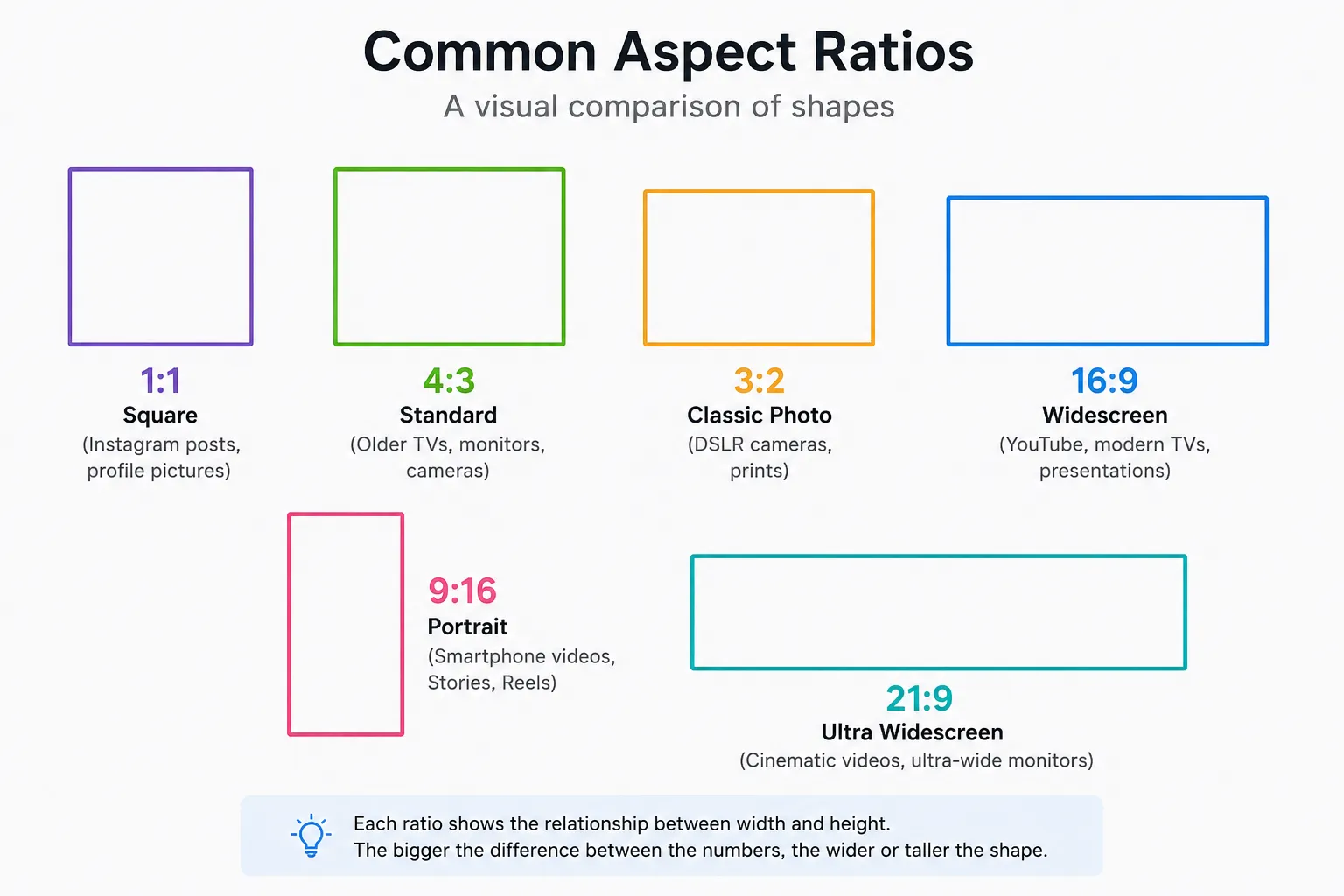
Most images, videos, and screens you’ll encounter fall into a small handful of standard ratios. Here are the ones worth knowing:
| Aspect Ratio | Where You’ll See It | Typical Resolution |
|---|---|---|
| 1:1 | Instagram square posts, album covers | 1080×1080 px |
| 4:3 | Classic photography, older TVs, iPad screens | 1600×1200 px |
| 3:2 | DSLR and mirrorless photography, standard prints | 6000×4000 px |
| 16:9 | HD/4K video, YouTube, modern TVs and monitors | 1920×1080 px |
| 9:16 | Instagram Reels, TikTok, YouTube Shorts | 1080×1920 px |
| 21:9 | Cinematic widescreen, ultrawide monitors | 2560×1080 px |
Photography and video split largely for historical reasons. 3:2 comes from 35mm film — the format Leica established in the 1920s, with a 36×24mm frame that simplifies to 3:2 — which is why it’s still the default sensor shape on most DSLR and mirrorless cameras today. 16:9 became the video standard because it’s a comfortable enough compromise between older 4:3 TVs and the widescreen cinema look. Vertical 9:16 is newer — it exists purely because that’s how people naturally hold a phone.
What’s the Best Aspect Ratio to Use?
There isn’t a single best aspect ratio — it depends entirely on where the image or video will end up, and largely on orientation: landscape ratios like 16:9 and 4:3 suit horizontal viewing, while portrait ratios like 9:16 and 4:5 suit vertical, mobile-first viewing.
- Posting to Instagram feed or a profile grid? 1:1 or 4:5 keeps things consistent and avoids awkward cropping.
- Shooting or editing video for YouTube, a TV, or a monitor? 16:9 is the safe default almost everywhere.
- Making content for Stories, Reels, or TikTok? 9:16 is built for vertical, full-screen viewing.
- Printing photos at a standard size? 3:2 matches most camera sensors and common print sizes without cropping.
If you’re prepping the same image for several of these at once, our Aspect Ratio Calculator includes a crop preview grid for Instagram, YouTube, and other common platform sizes side by side, so you can check every orientation before you export anything.
Work backward from the platform, not forward from your shot: pick the ratio that matches the destination first, then compose around it. Retrofitting a ratio onto finished content is where most cropping problems start.
Aspect Ratio in Presentations (PowerPoint & Google Slides)
Presentation software is where aspect ratio confusion shows up constantly, mostly because the defaults have changed over the years.
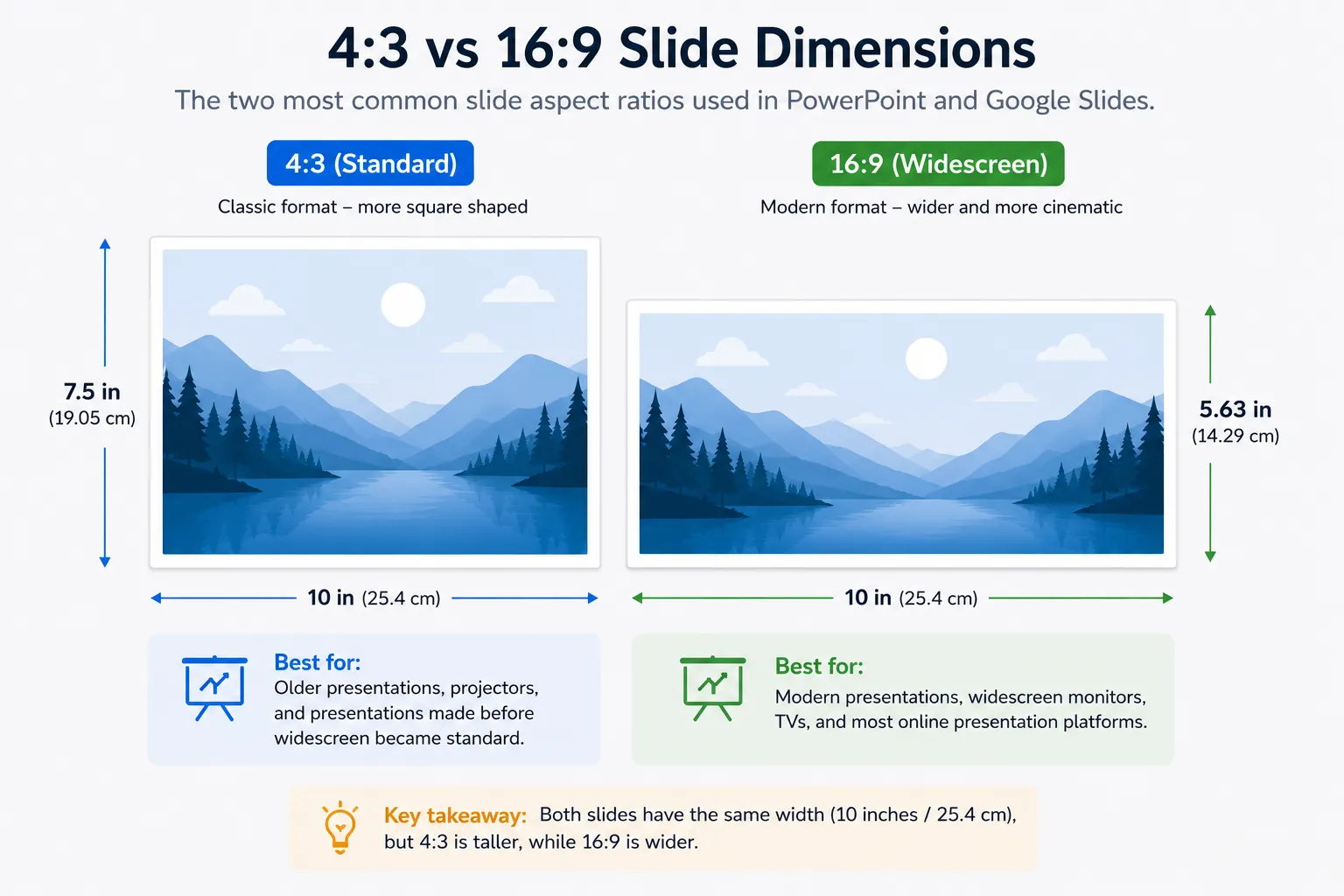
PowerPoint slide size has two standards. Older files default to a 4:3 slide, sized 10 × 7.5 inches. Since PowerPoint 2013, the default powerpoint size switched to 16:9 widescreen, sized 13.33 × 7.5 inches — confirmed in Microsoft’s own slide-size documentation. If you’re opening an older template, it may still be locked to the 4:3 dimensions — worth checking under Design > Slide Size before you build a full deck around it.
Google Slides aspect ratio follows the same widescreen logic by default, using a 16:9 layout close to 10 × 5.63 inches. You can switch it back to a 4:3 standard or a custom size from File > Page Setup if you need to match an older ppt slide size or a specific screen.
The general presentation slide size guidance: match your slide ratio to how the deck will actually be shown. Widescreen 16:9 is the right call for modern monitors, projectors, and screen shares. Only switch to 4:3 if you know the display or printer you’re targeting is older or square-ish — otherwise you’ll end up with black bars on either side.
Converting or Resizing Without Distorting Your Design
The most common aspect ratio mistake: dragging a corner handle without locking proportions. That stretches or squashes the image instead of resizing it cleanly — and it’s rarely obvious until after you’ve already exported or published.
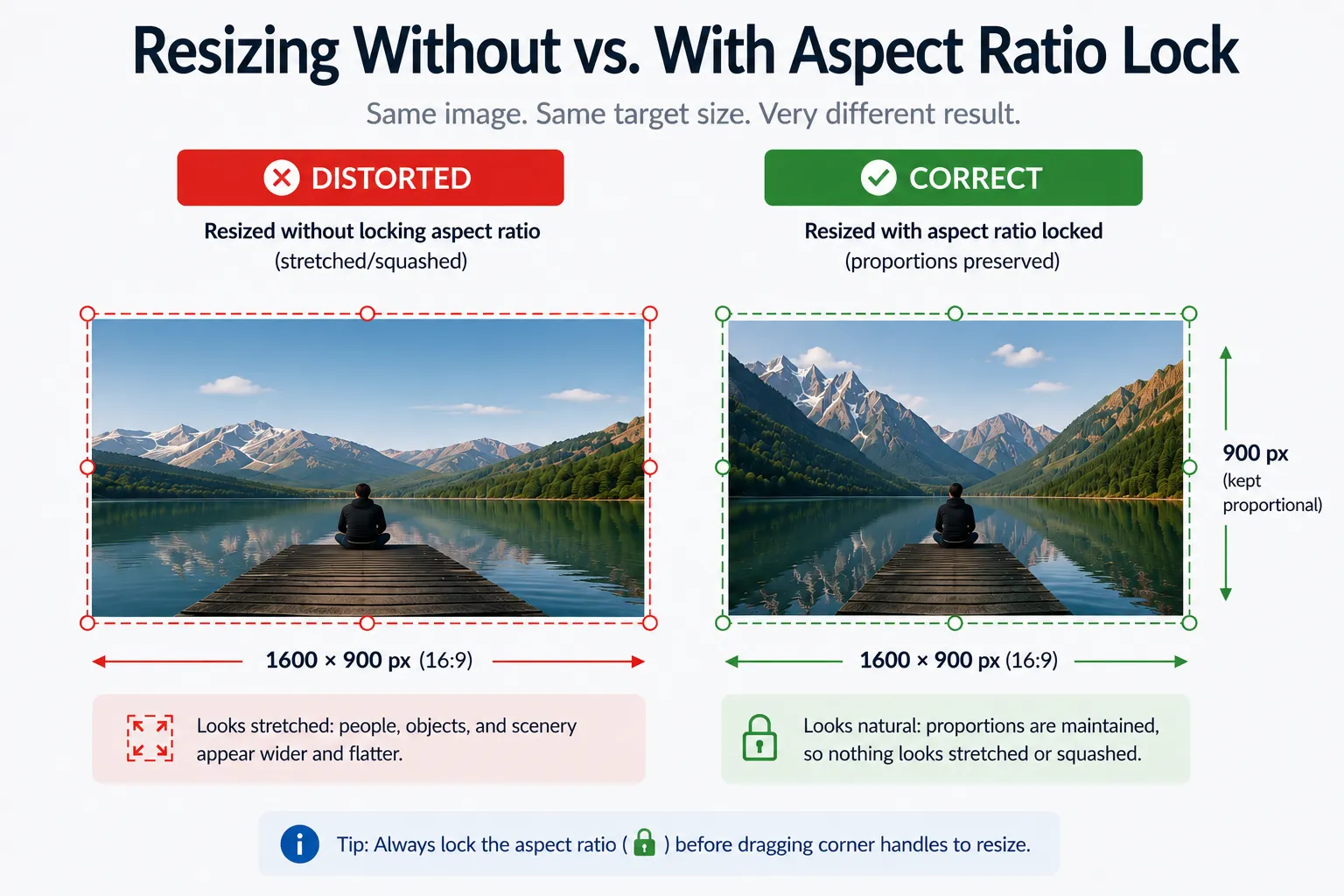
To convert aspect ratio properly, you have three real options:
- Crop it. You keep the original scale but cut away part of the image to fit the new shape. This is the right move when the subject can tolerate losing some edges — a portrait photo going from 3:2 to 1:1, for example.
- Letterbox or pillarbox it. You keep the whole image intact and add padding (usually black or white bars) to fill the new shape. Common for fitting 16:9 video into a 4:3 frame without cropping any content.
- Recalculate the matching dimension. If you know you want to keep the exact framing and just need the correct size, calculating the new width or height from the original ratio avoids both cropping and distortion entirely.
That third option is where a calculator actually saves time. Instead of guessing or doing the division by hand, our Aspect Ratio Calculator works in both directions — give it a ratio and one dimension, and it returns the matching dimension instantly, or give it two dimensions and it tells you the simplified ratio.
If you’re starting from an existing file and just need to find aspect ratio of image content you already have — a photo, screenshot, or video you didn’t create yourself — the Aspect Ratio Finder reads the file directly and returns its exact ratio, no manual math required. In a pinch, you can also do this by hand: check the file’s exact pixel dimensions under “Properties,” “Get Info,” or “Image Size” in your operating system or editor, then run those numbers through the GCD formula from earlier.
The short version for anyone trying to resize image while keeping aspect ratio intact: hold Shift (or the equivalent proportional-lock control) while dragging in most editing software, or better, enter the target width and let the tool calculate the correct height for you.
Aspect ratio isn’t complicated once you see it as shape instead of size — the formula, the presets, and the conversion methods above cover nearly everything you’ll run into day to day. When you do hit an edge case, the Calculator and Finder tools linked throughout this guide handle the math instantly, so you don’t have to.
Frequently asked questions
Common questions from this guide.
What Does Aspect Ratio Mean?
Aspect ratio is the proportional relationship between an image or screen's width and height, written as two numbers like 16:9. It describes the shape of something, not its actual size — a small icon and a giant billboard can share the same aspect ratio.
What Is the Best Aspect Ratio?
There's no universal best — it depends on where the content is going. 16:9 is standard for video and presentations, 1:1 works well for social feed posts, 9:16 suits vertical mobile content, and 3:2 is the common default for photography and prints.
What Aspect Ratio Should I Use?
Start with the platform or output you're targeting. Check the recommended dimensions for that destination — YouTube, Instagram, a specific presentation software, or a print size — and match your ratio to it before you start shooting or designing, rather than trying to fix it afterward.
Does Aspect Ratio Affect Image Quality or File Size?
Not directly. Aspect ratio only describes shape, so it has no inherent effect on resolution, compression, or file size. What actually affects quality is how you change the ratio: cropping discards pixels, which can reduce detail if you crop aggressively, while stretching to a new ratio without cropping distorts the image without losing any resolution. Resizing to the correct matching dimensions, the way the Aspect Ratio Calculator does it, avoids both problems.
Related tool
Aspect Ratio Calculator
Calculate matching width and height for any aspect ratio, then preview how your image or video fits.